
How to Get Your Payslips in Time2Staff

Once your EasyFreelance payment account is set up and connected, you can view and download your payslips directly from EasyFreelance right from the Time2Staff app.
Where to find it
-Open the Time2Staff app and go to Profile.
-Under Payment account connected, tap "How to get payslips."
-A short guide will pop up with the steps below or tap "Go to EasyFreelance" to go straight to your account.
Steps to download your payslip
-Go to Payouts / Utbetalinger in your EasyFreelance account.
-Click Options / Valg next to the payout you want.
-Select Payslip / Lønnslipp to download the document.
That's it your payslip will be downloaded with the full payout details for that period.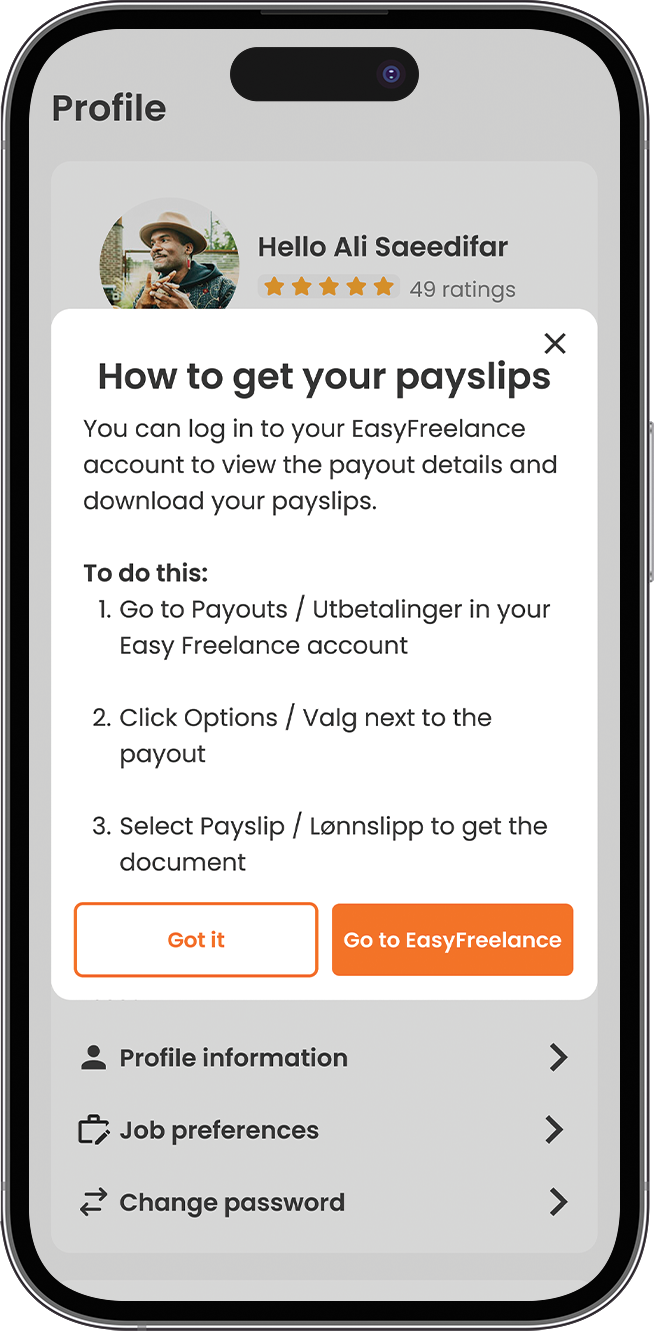
Good to know
Payslips are only available once your account shows "Payment account connected" with status "ID Verification succesfully." If your account still shows "Payment setup in progress" (Pending ID Verification), payslips aren't available yet, no action is needed on your end, this happens automatically once verification is complete.
Each payout has its own payslip, so you'll find a separate one for every payment you've received.
Payslips are generated and stored by EasyFreelance, not in the Time2Staff app itself, so always go through your EasyFreelance account to access them.
FAQ
1. Where do I find my payslips? In your EasyFreelance account, under Payouts / Utbetalinger. You can get there directly from the Time2Staff app via Profile → "How to get payslips" → "Go to EasyFreelance."
2. Why can't I see any payslips yet? Your payment account is likely still pending ID verification. Once your Profile shows "Payment account connected," payslips will be available for any completed payouts.
3. Can I download payslips for old payouts? Yes, each payout in EasyFreelance has its own payslip available under Options / Valg → Payslip / Lønnslipp.
4. Do I need to request my payslip from Time2Staff support? No, you can download it yourself anytime directly from EasyFreelance — no need to contact support unless something looks wrong.