How to Post a Job on Time2Staff

Whether you need to fill a position for a single event or require staffing for multiple days, Time2Staff makes it easy to connect with qualified staff
Step 1: Access the Job Posting Section
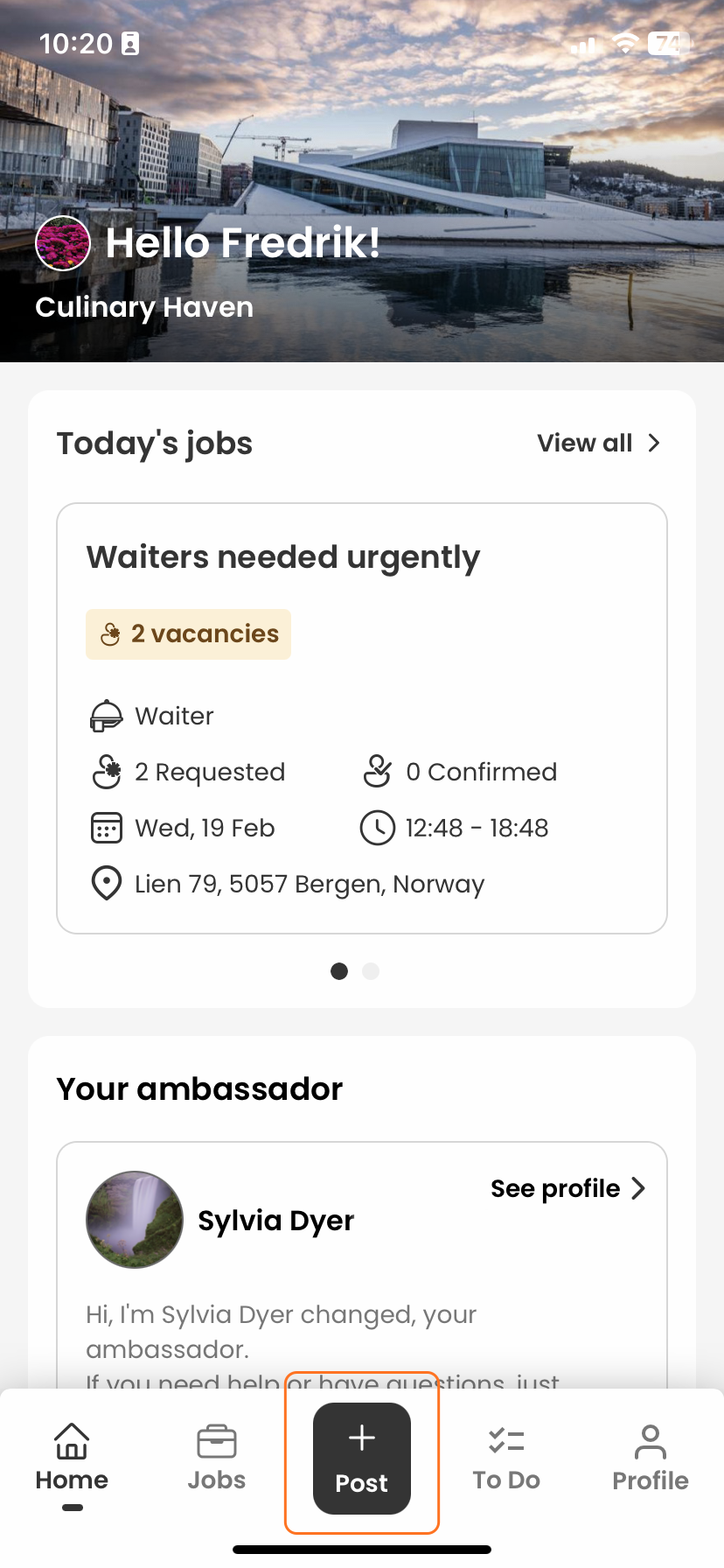
Navigate to the Home Screen: When you open the Time2Staff app, you'll land on the home screen.
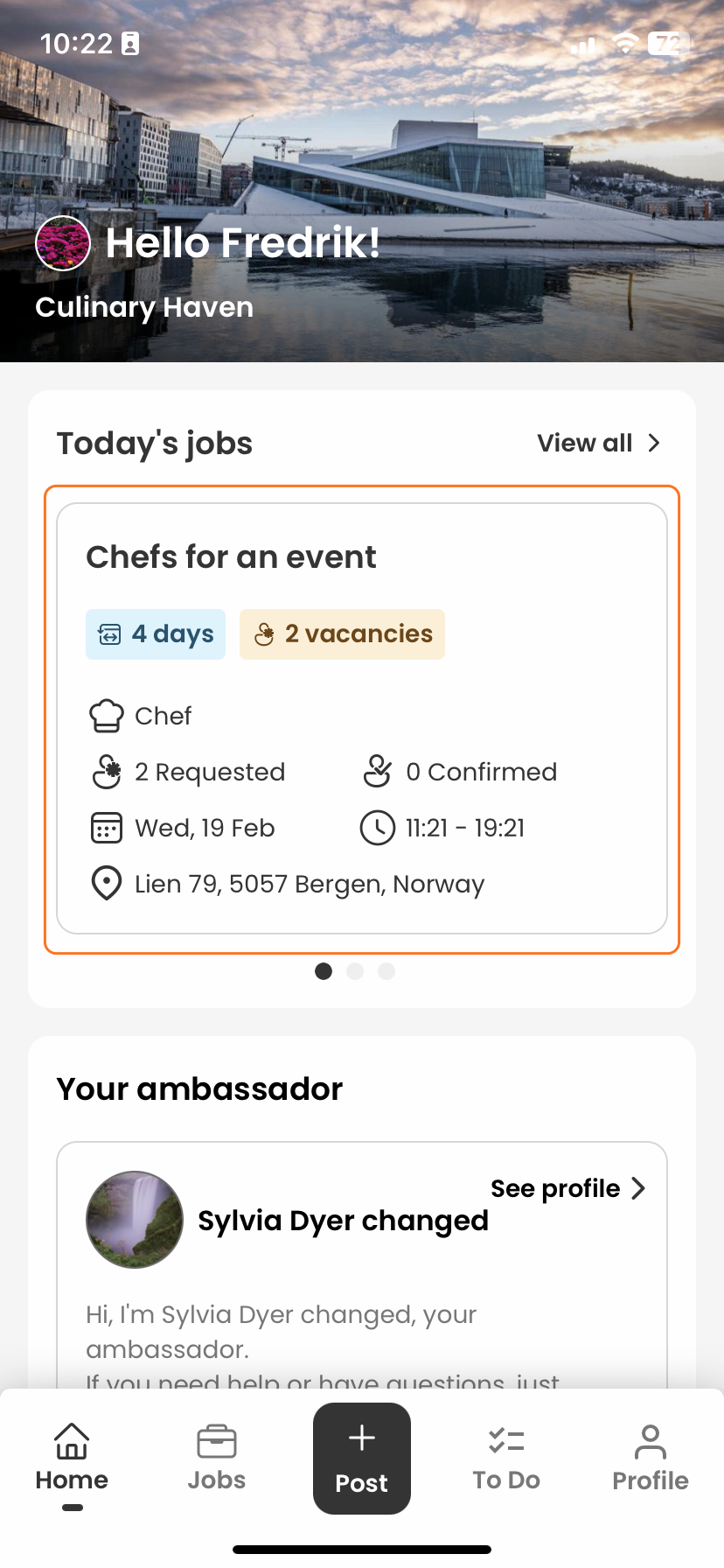
Access the Job Posting Section: Tap the "Post" button located centrally at the bottom menu bar to start creating a new job post.
Step 2: Enter Job Details
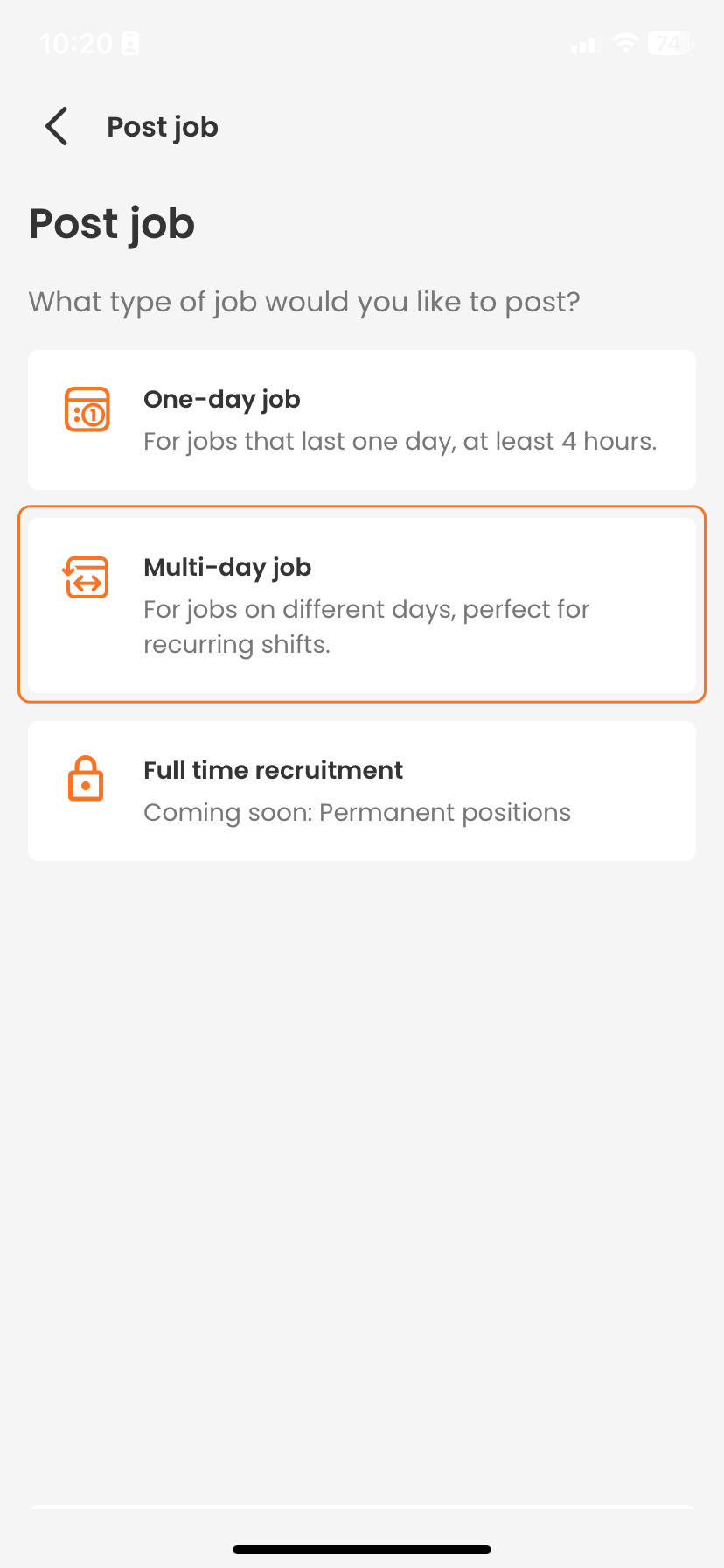
Choose Job Type:
Select Job Type: Choose between a single-day job or a multi-day job.
Job Information:
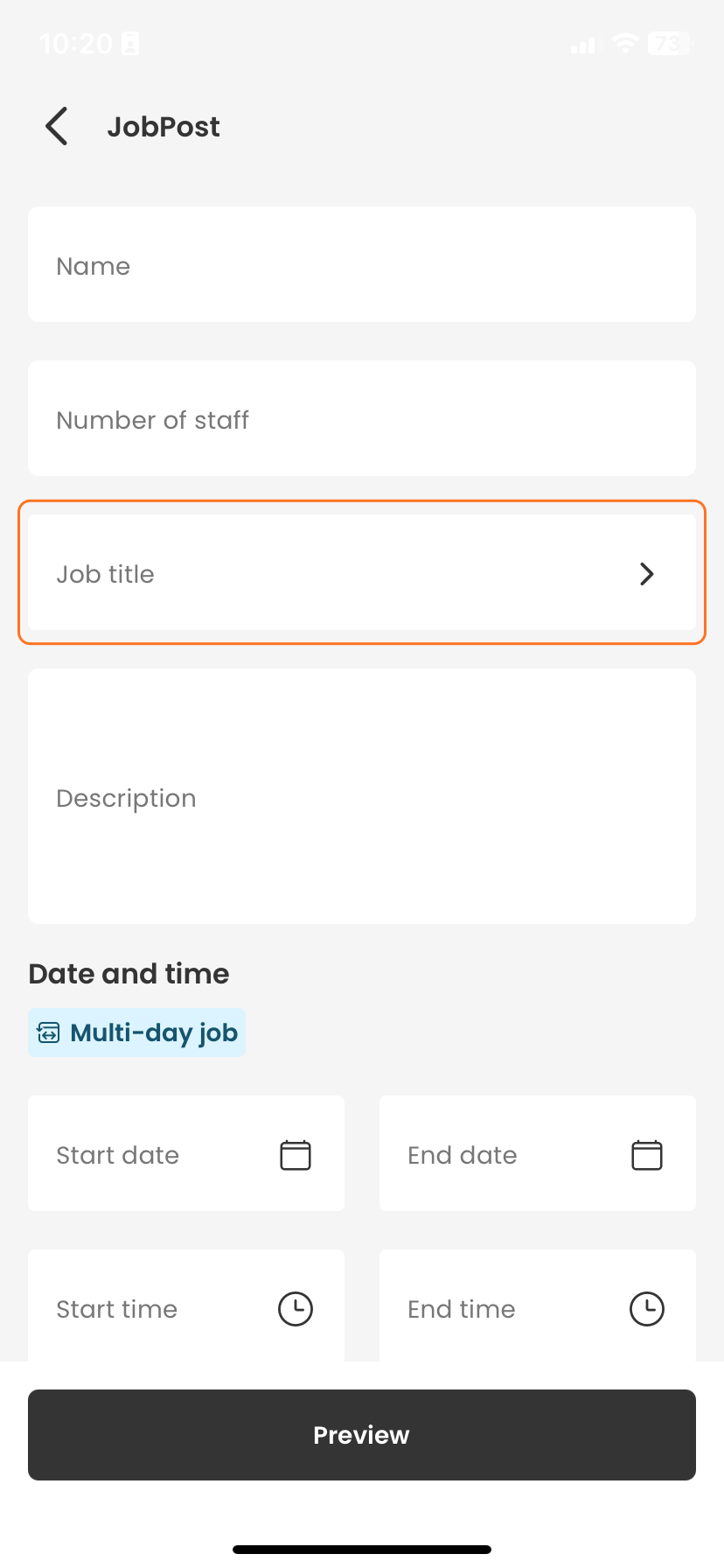
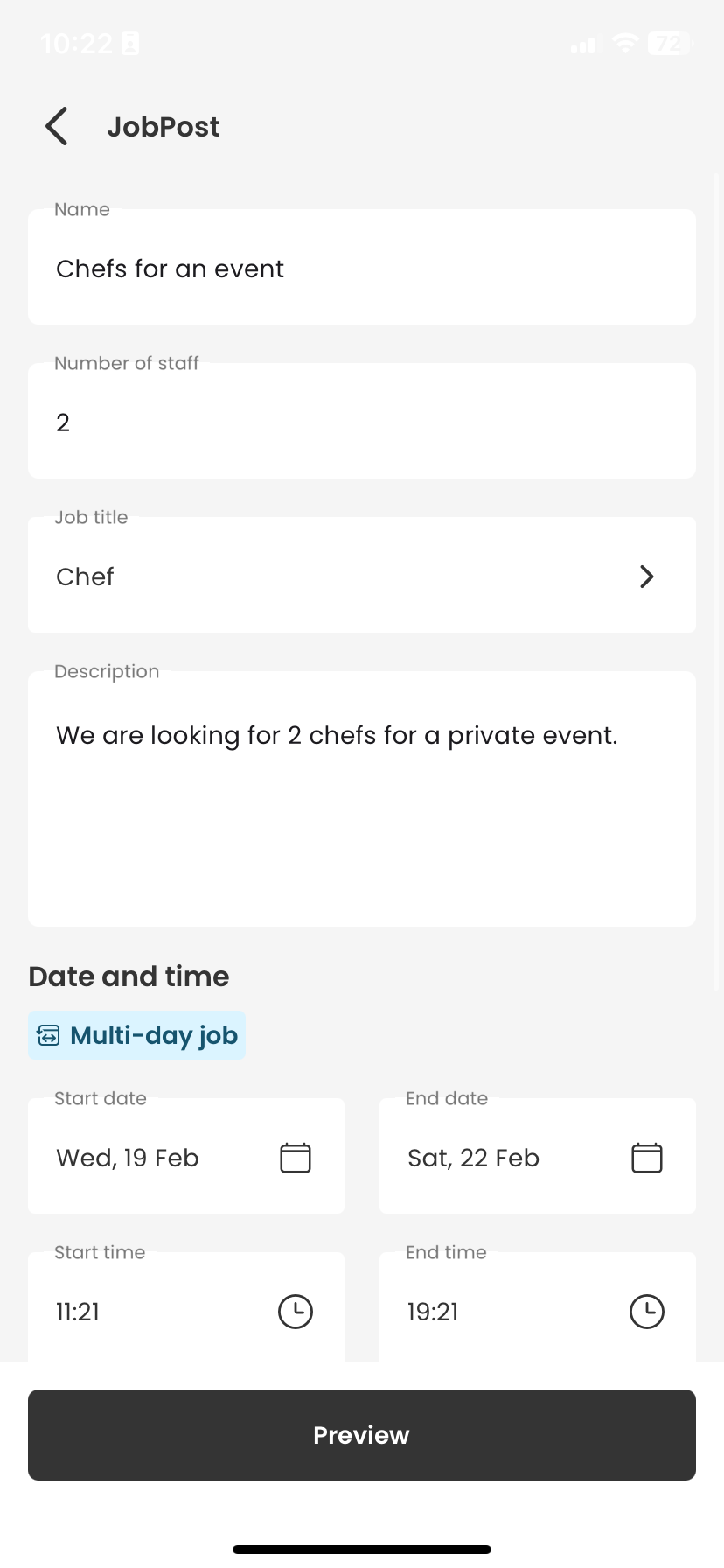
Name: Enter a descriptive name for the job to quickly convey the role, e.g., "Chefs for a Wedding Event".
Number of Staff: Specify how many staff you need.
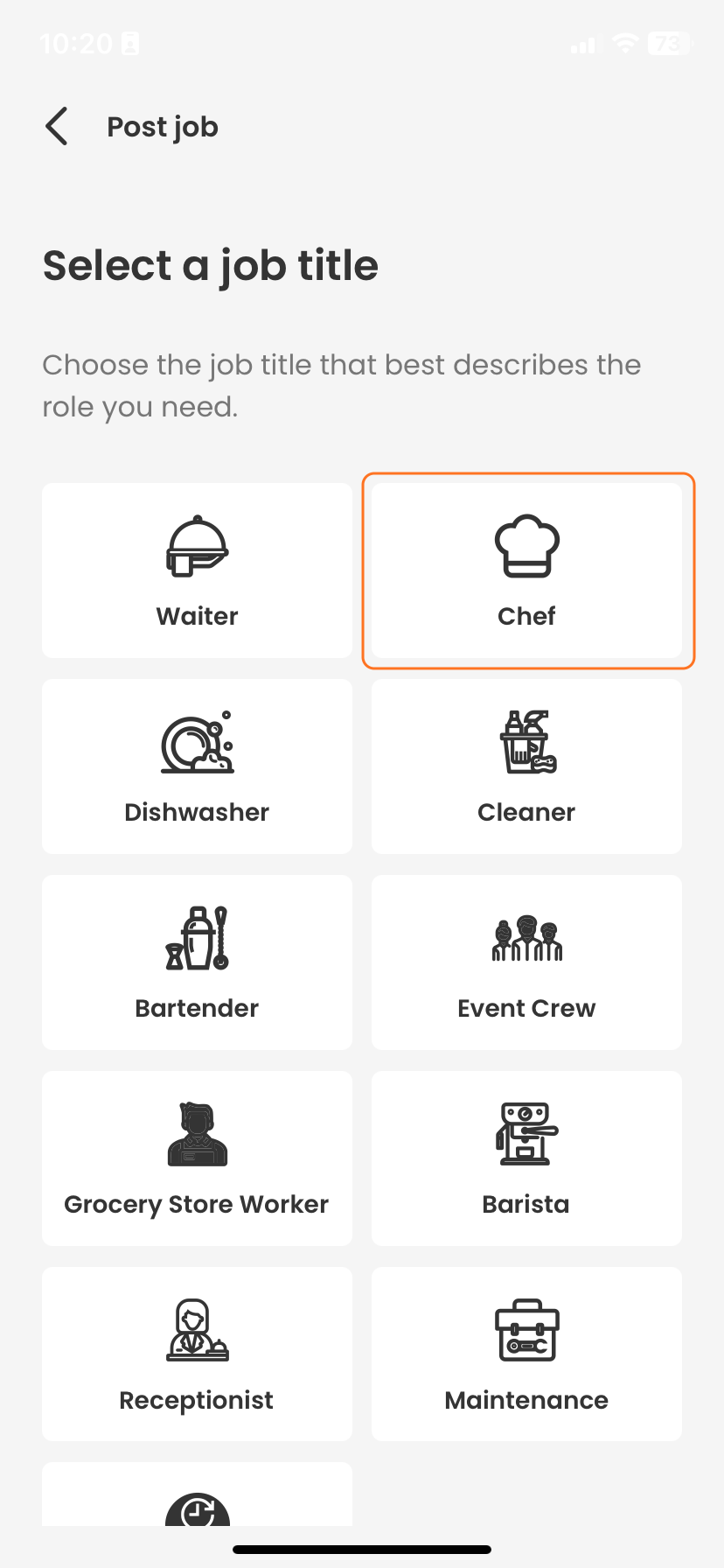
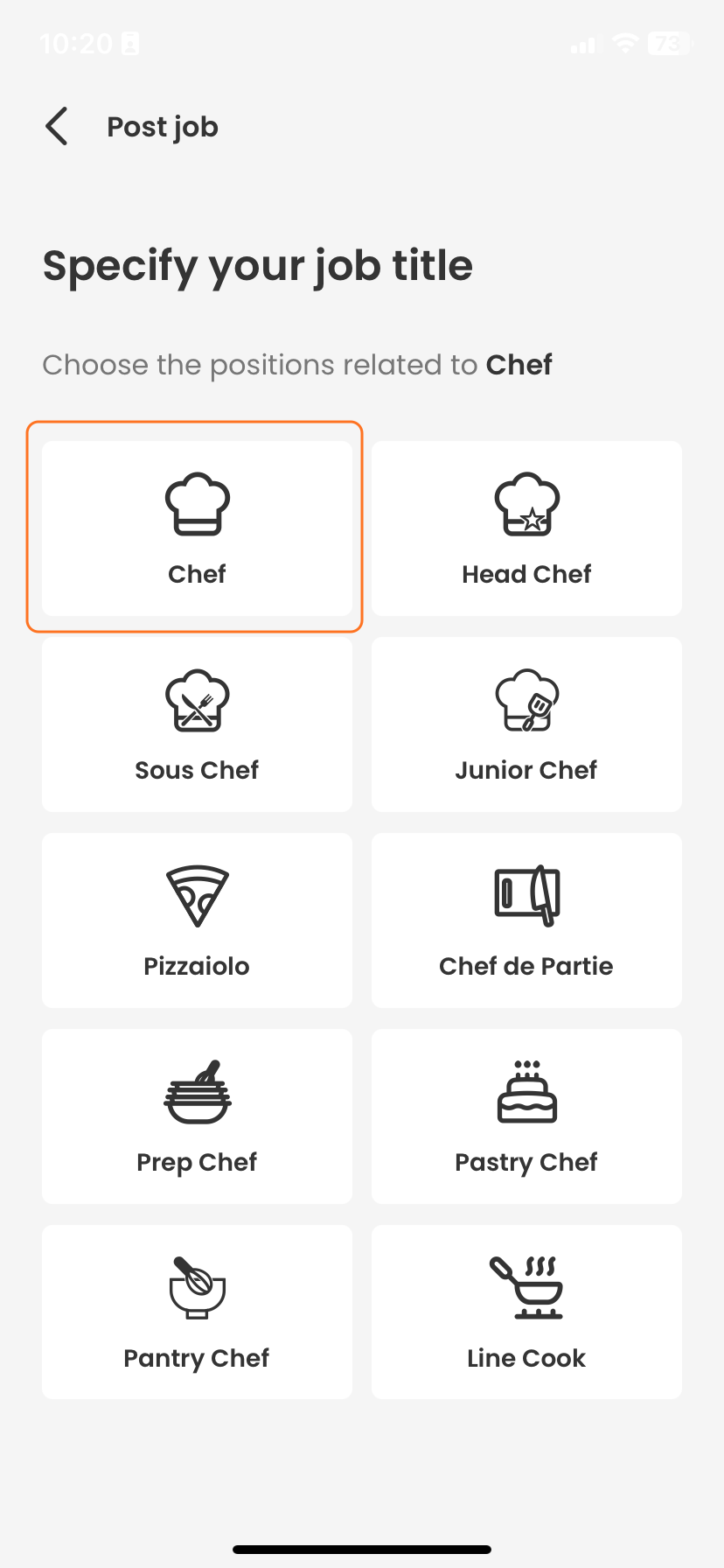
Job Title: Select the job title from a predefined list that best fits the role requirements.
Job Description:
Clearly describe the job responsibilities, any necessary qualifications, and other pertinent details like dress code or equipment needed.
Step 3: Set the Schedule
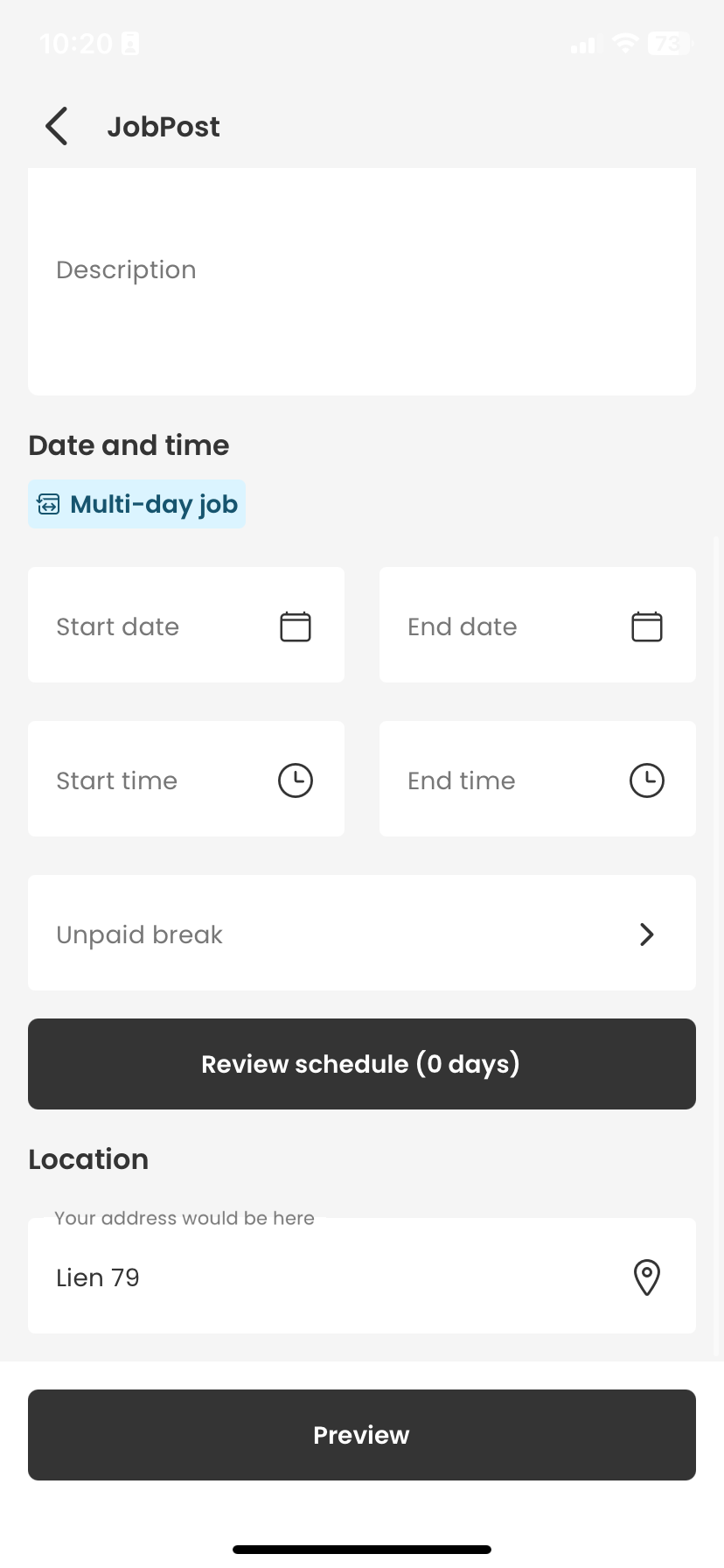
Set Date and Time:
For a single-day job: Choose the start and end dates and times for the shift.
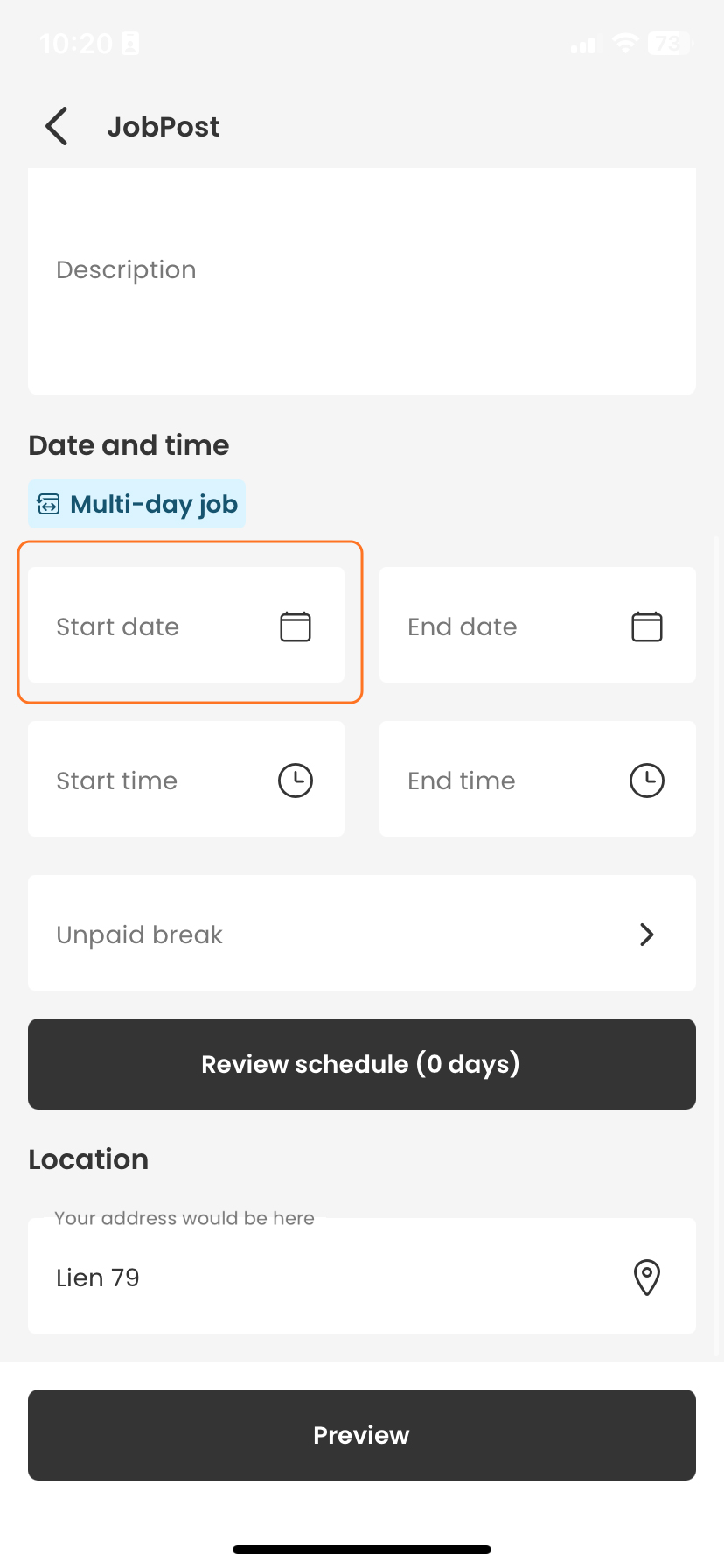
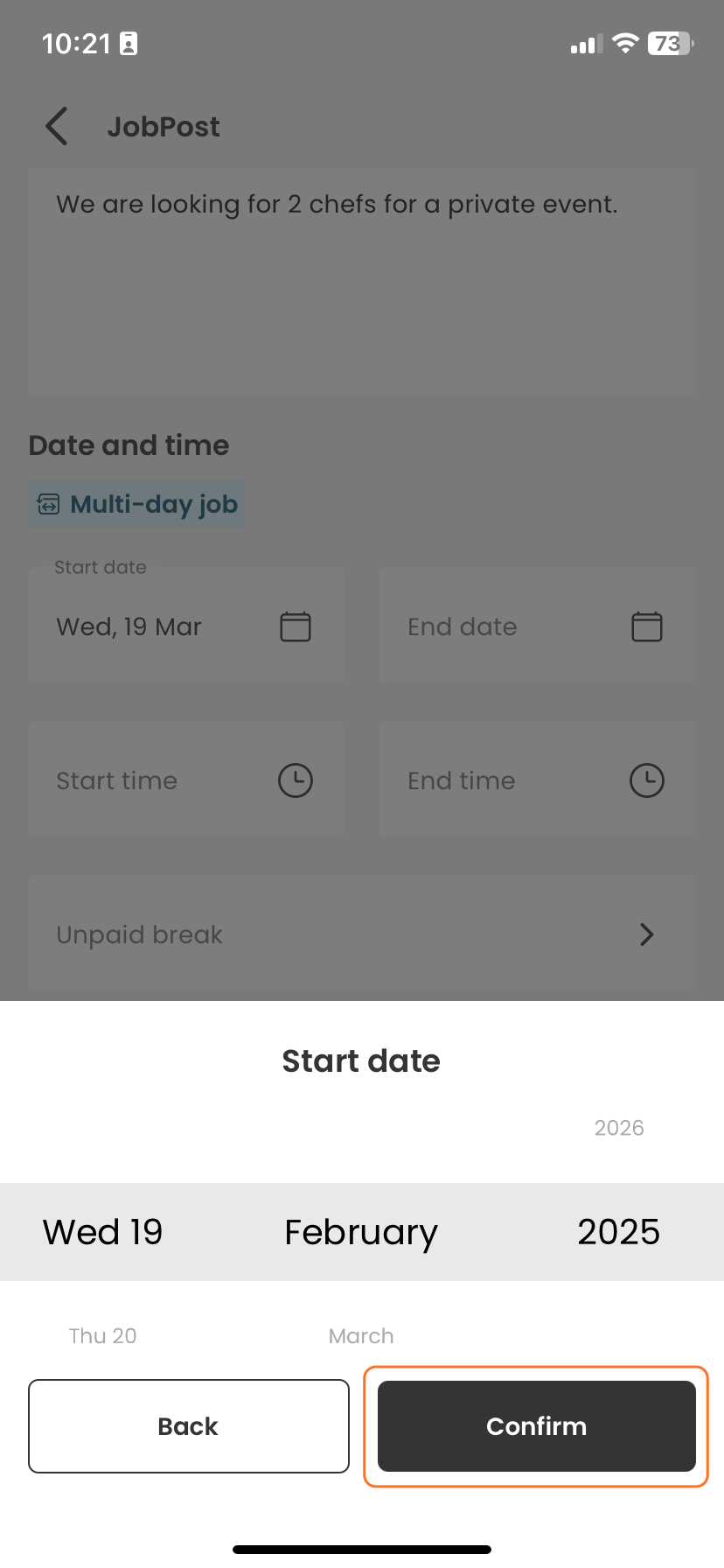
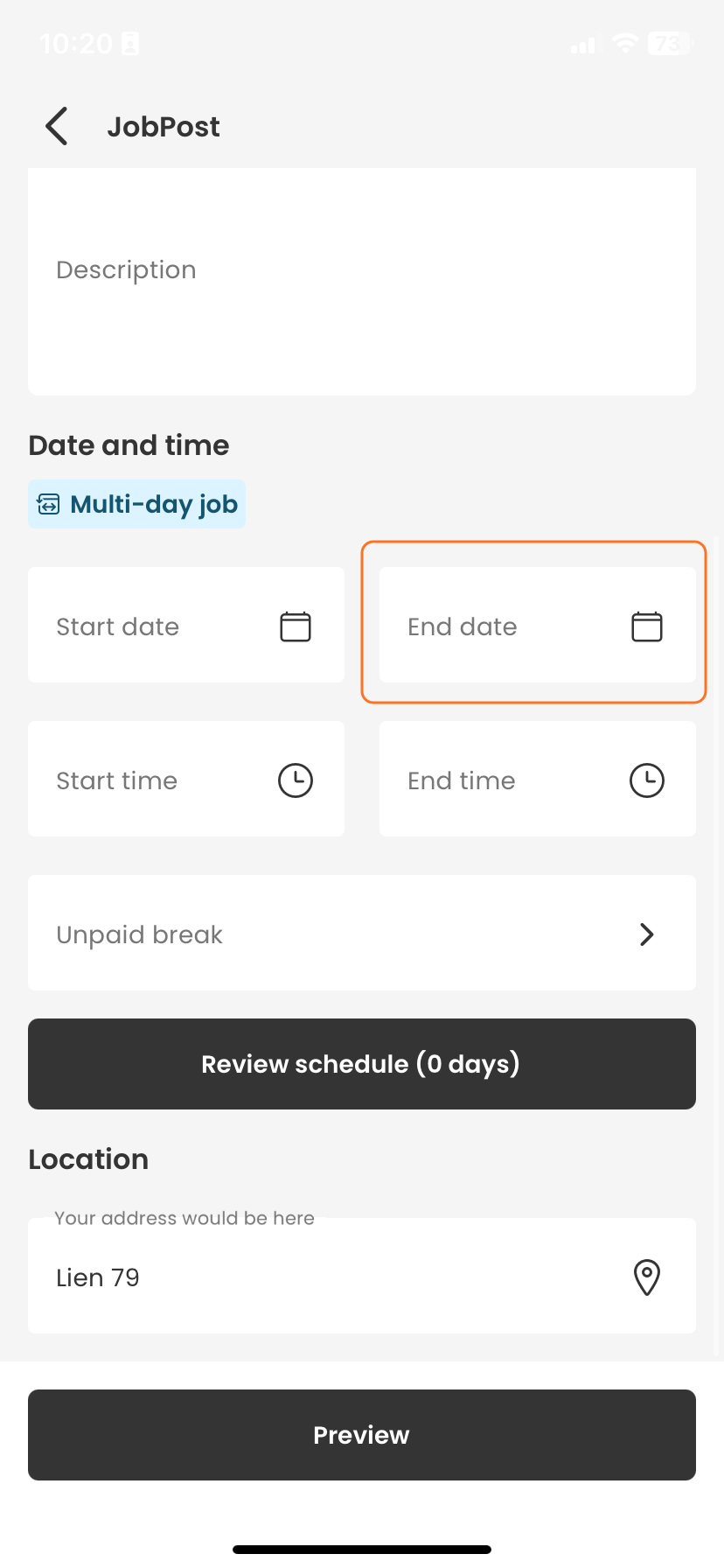
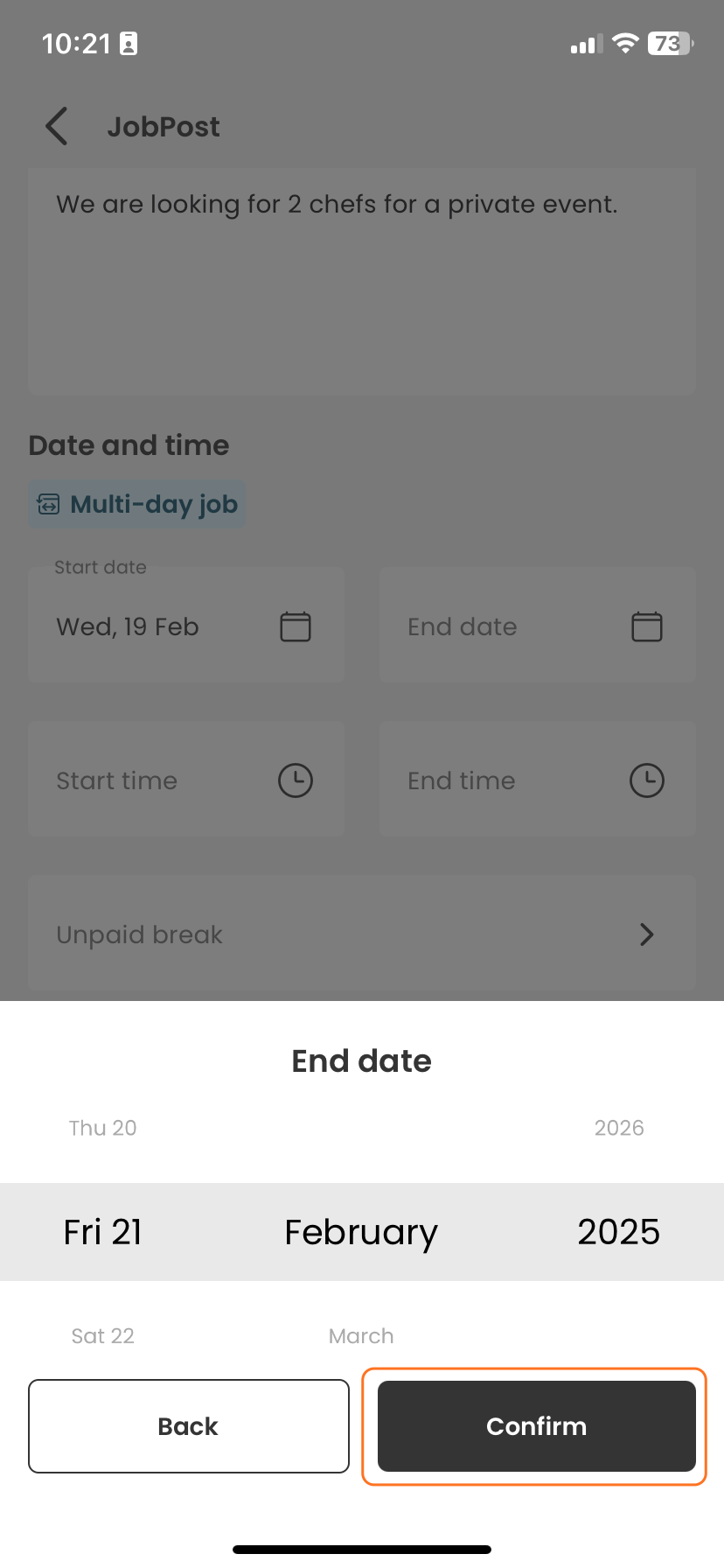
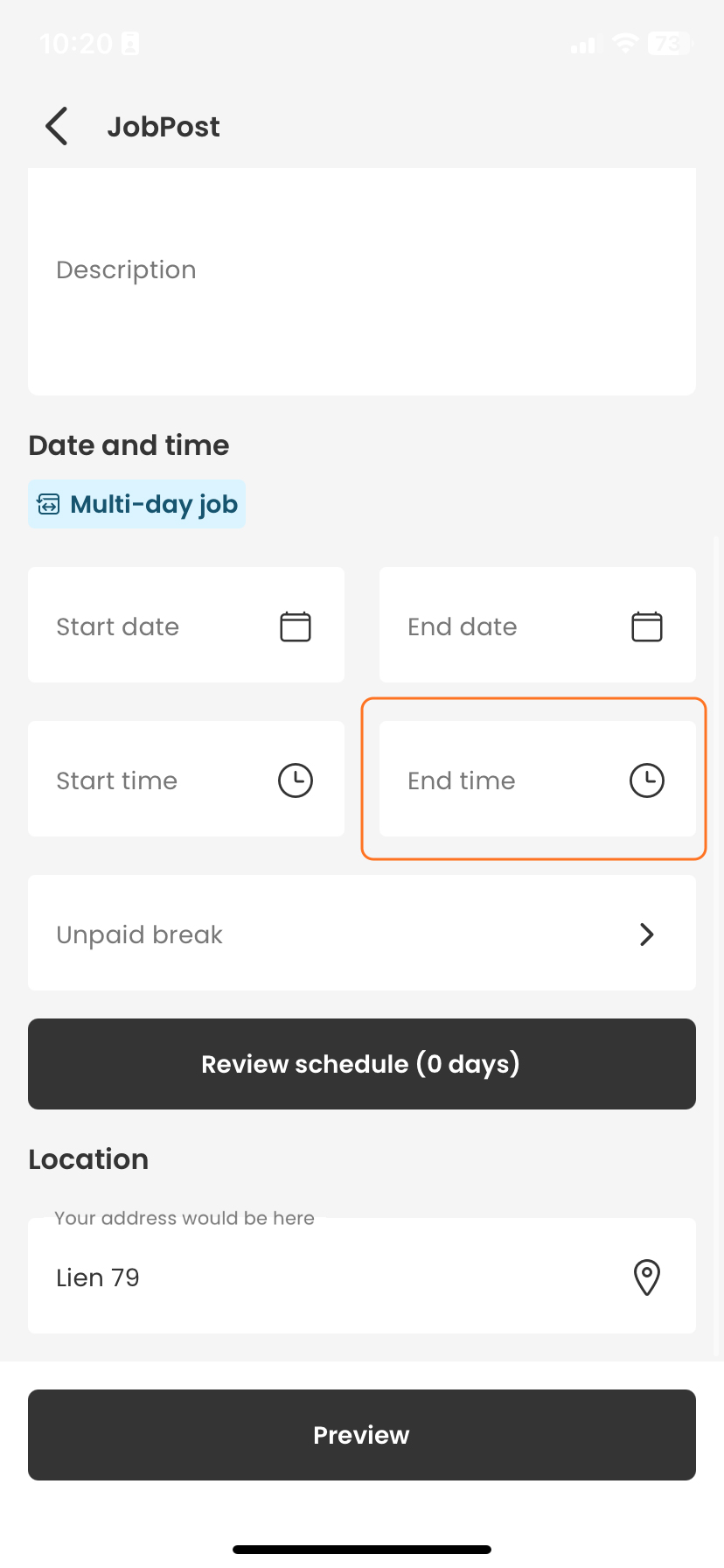
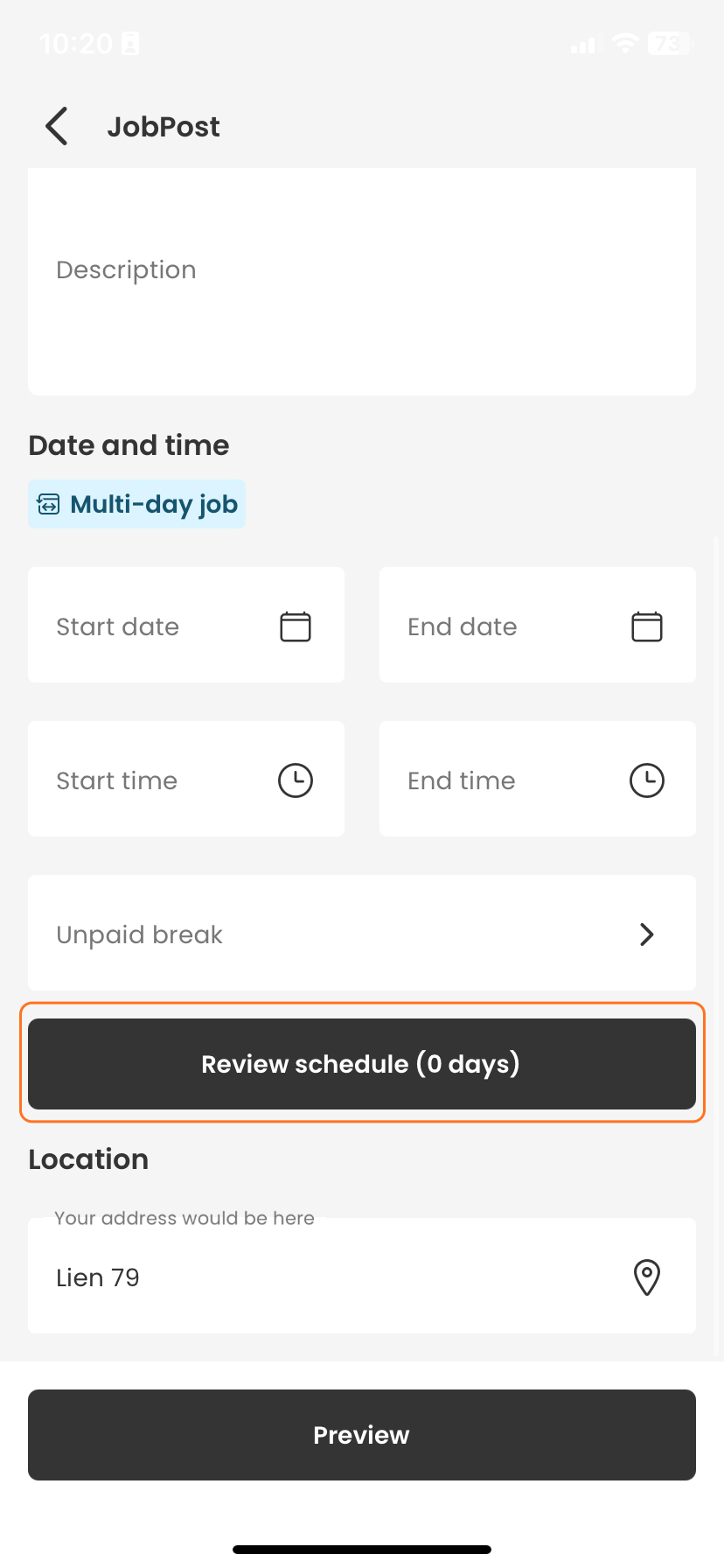
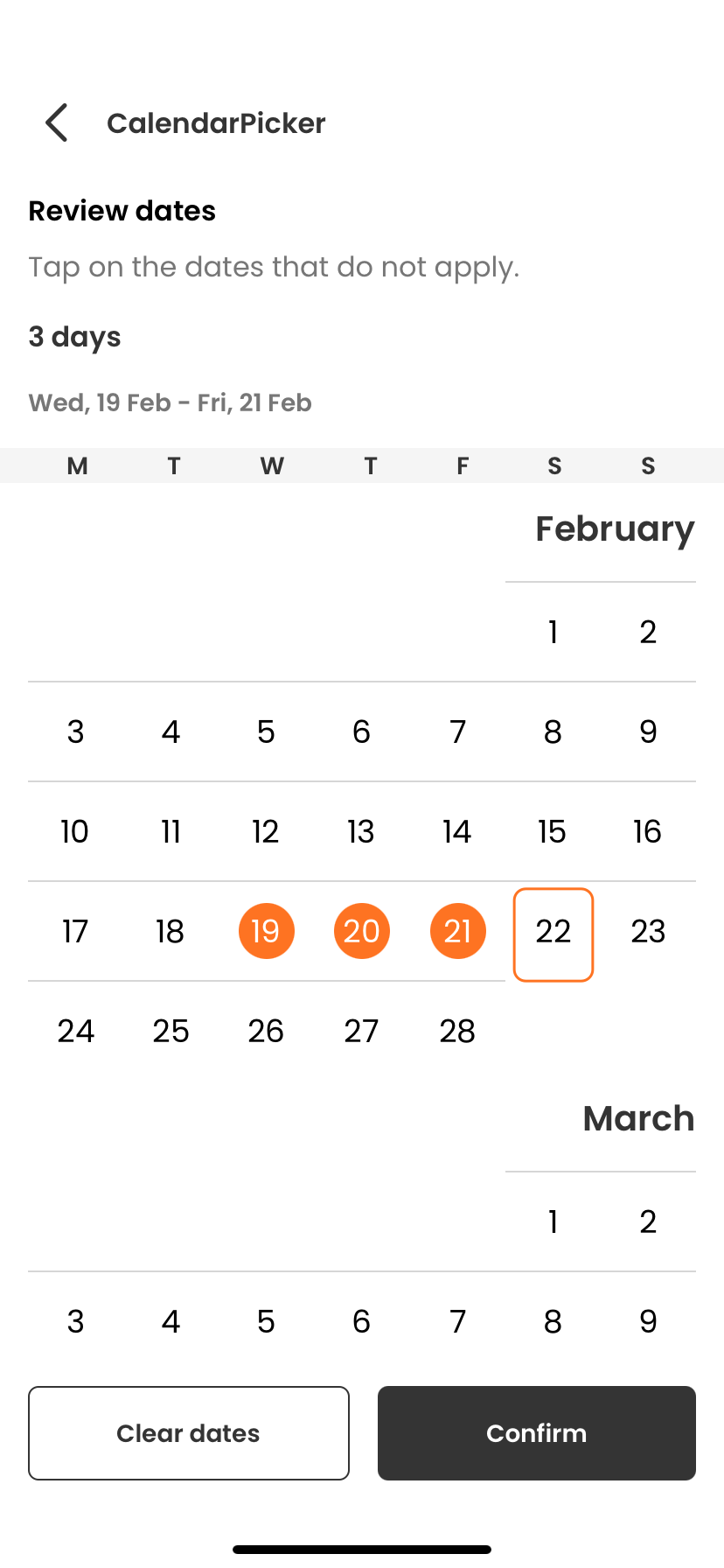
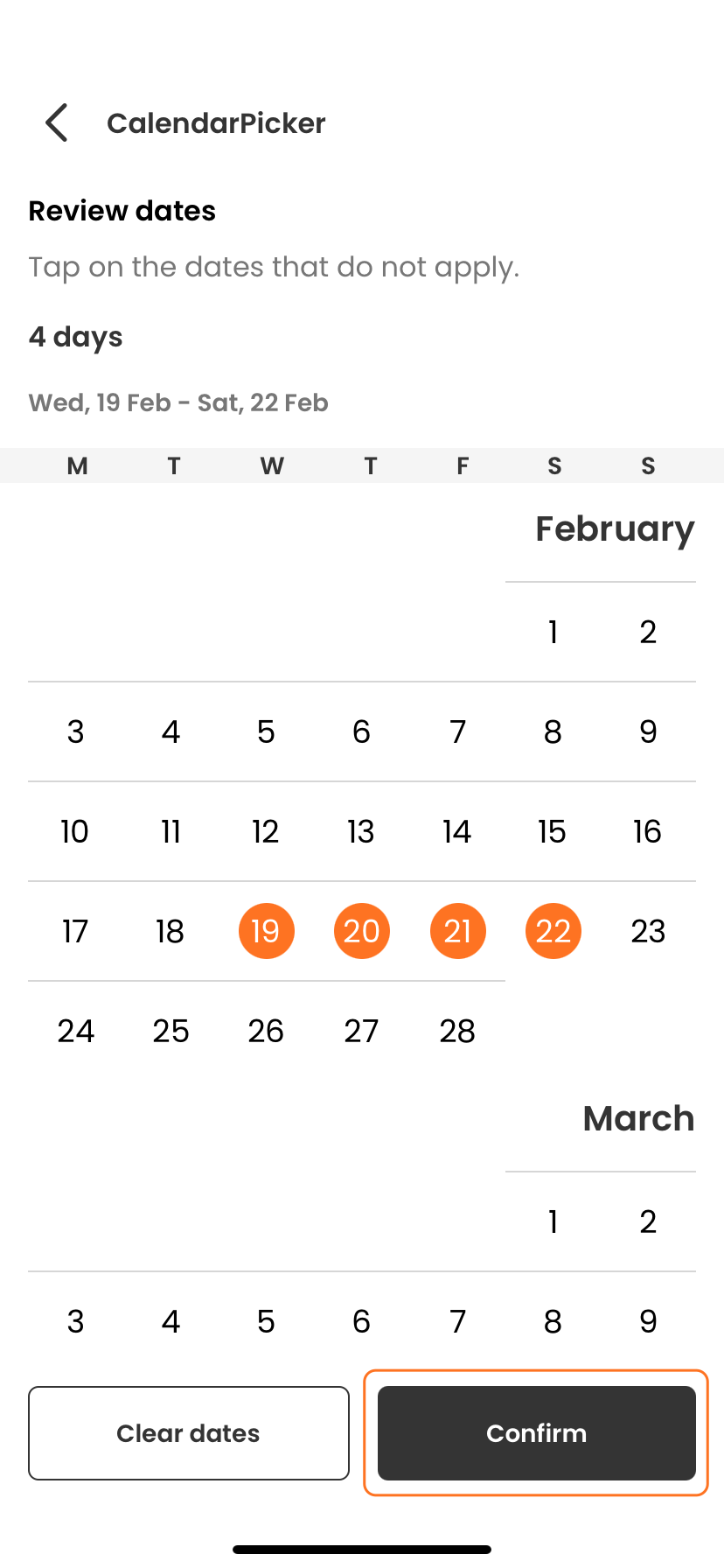
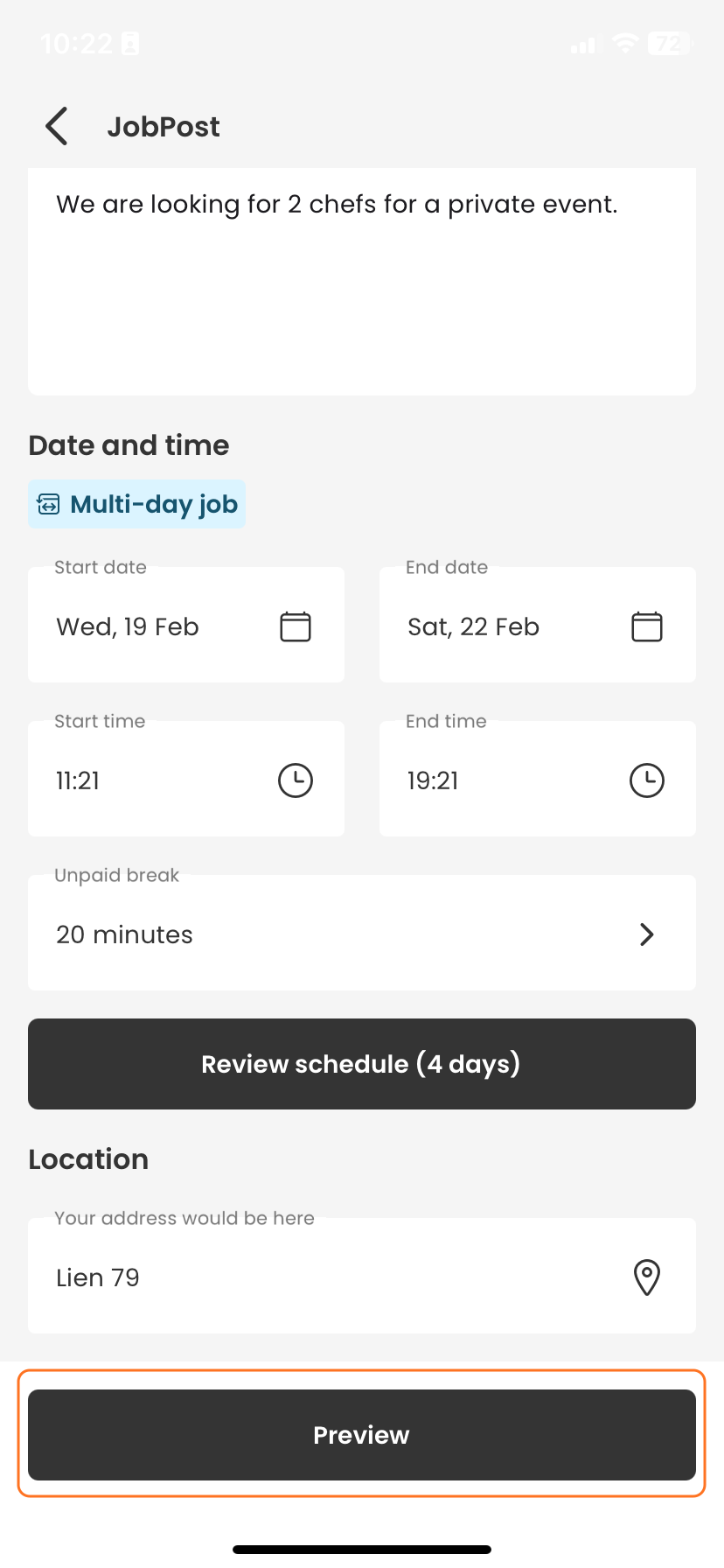
For a multi-day job: Set the start and end dates by tapping on the respective date fields and use the calendar pop-up to select correct dates.
Specify Dates:
Set the start and end dates by tapping on the respective date fields.
Use the calendar pop-up to select the correct dates.
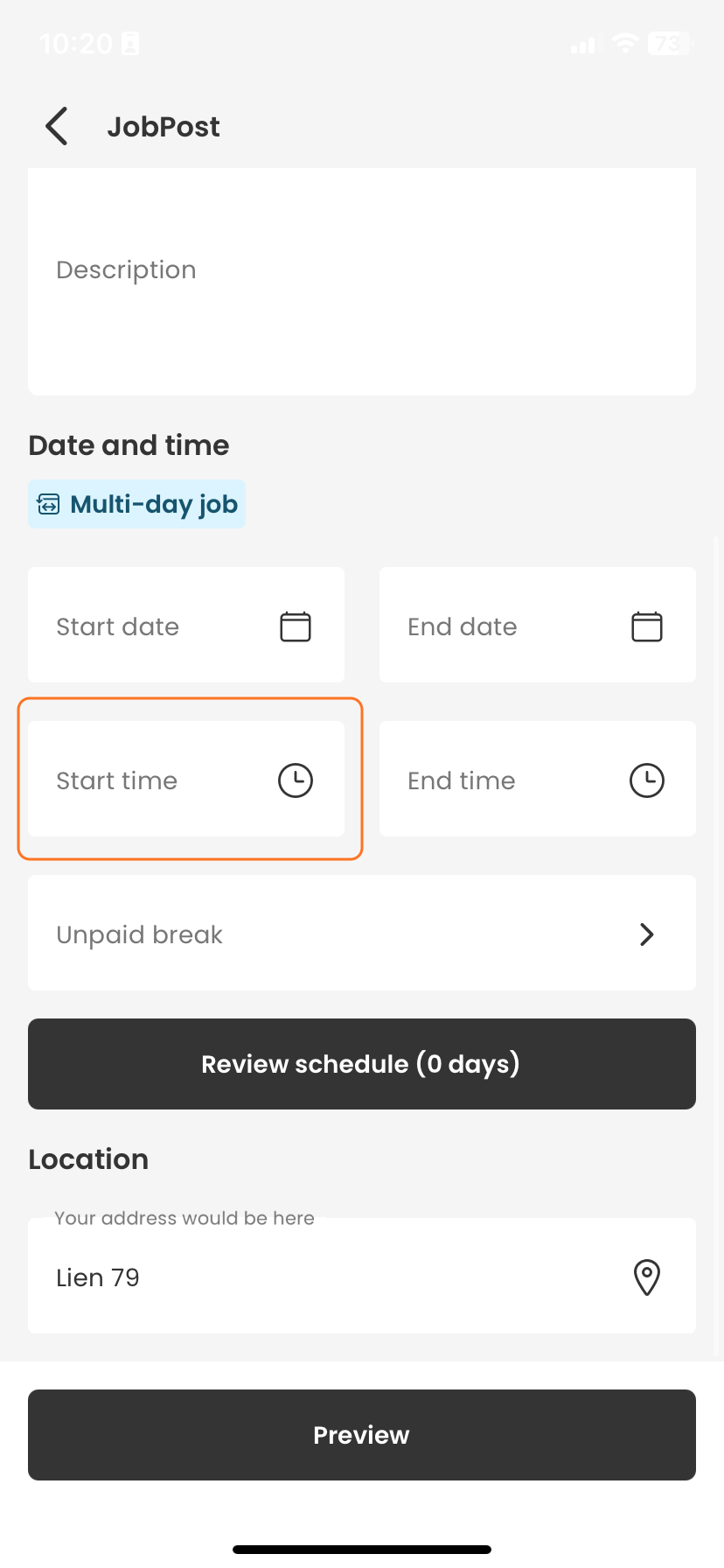
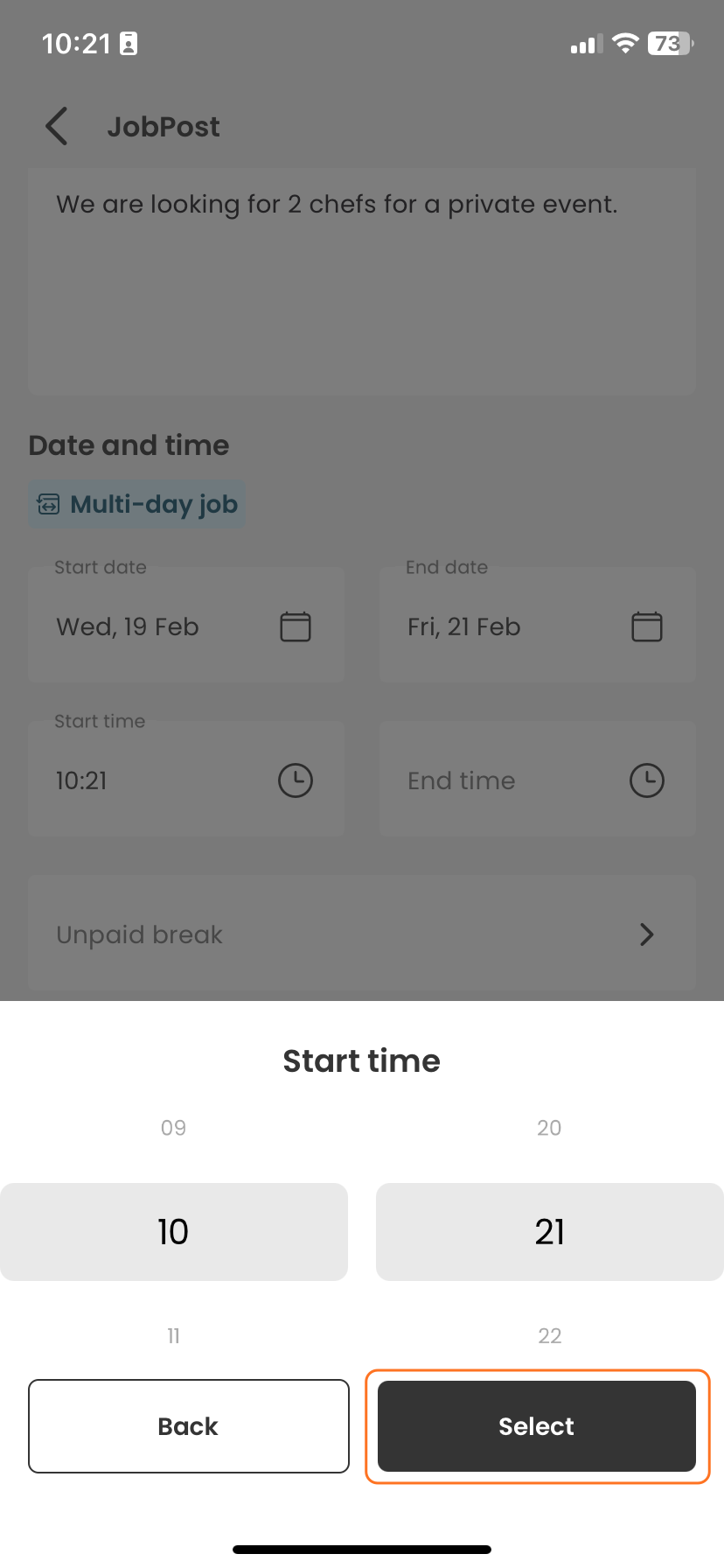
Define Working Hours:
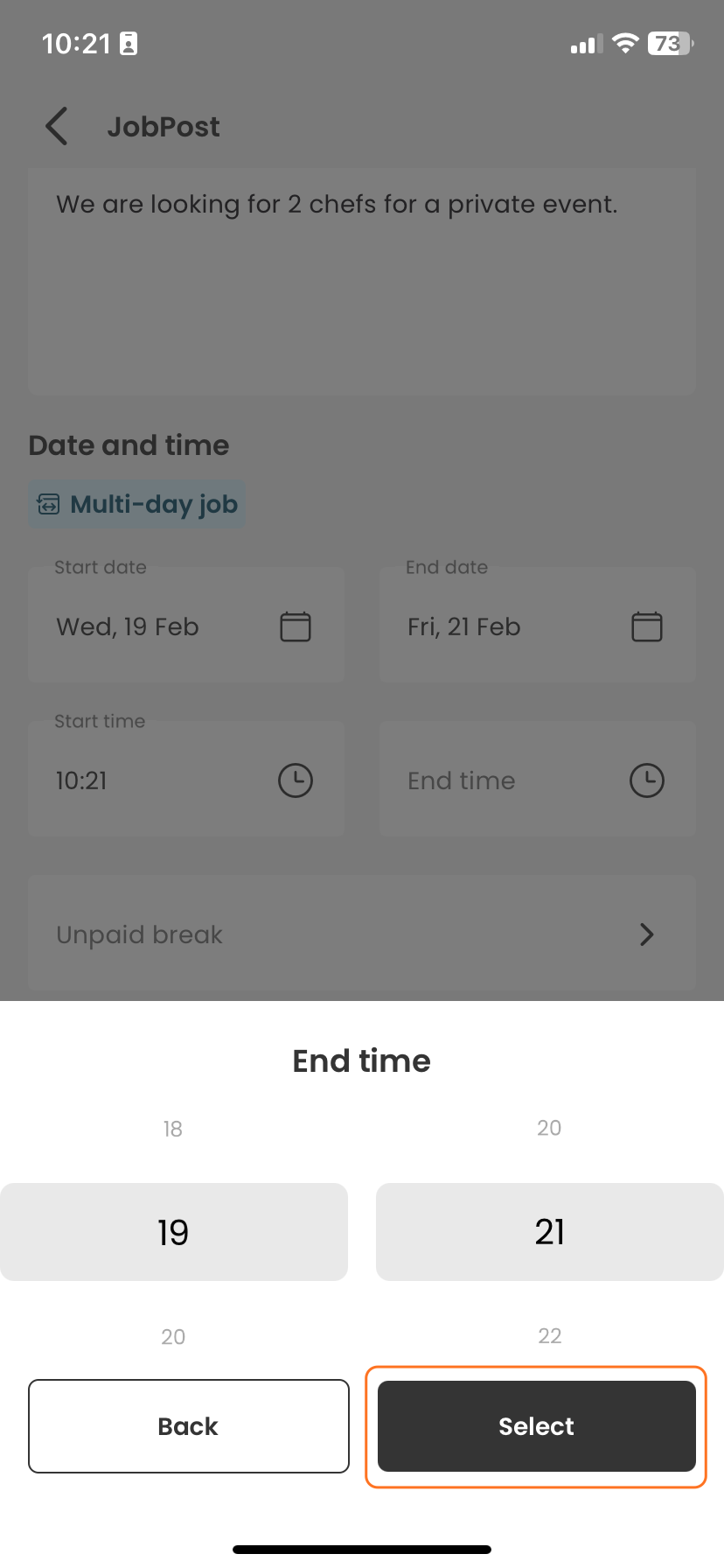
Enter start and end times for each day involved in the job duration.
Step 4: Specify the Location
Location: Type in the exact address where the job will take place, ensuring it’s clear and accurate to avoid any confusion.
Step 5: Review and Post
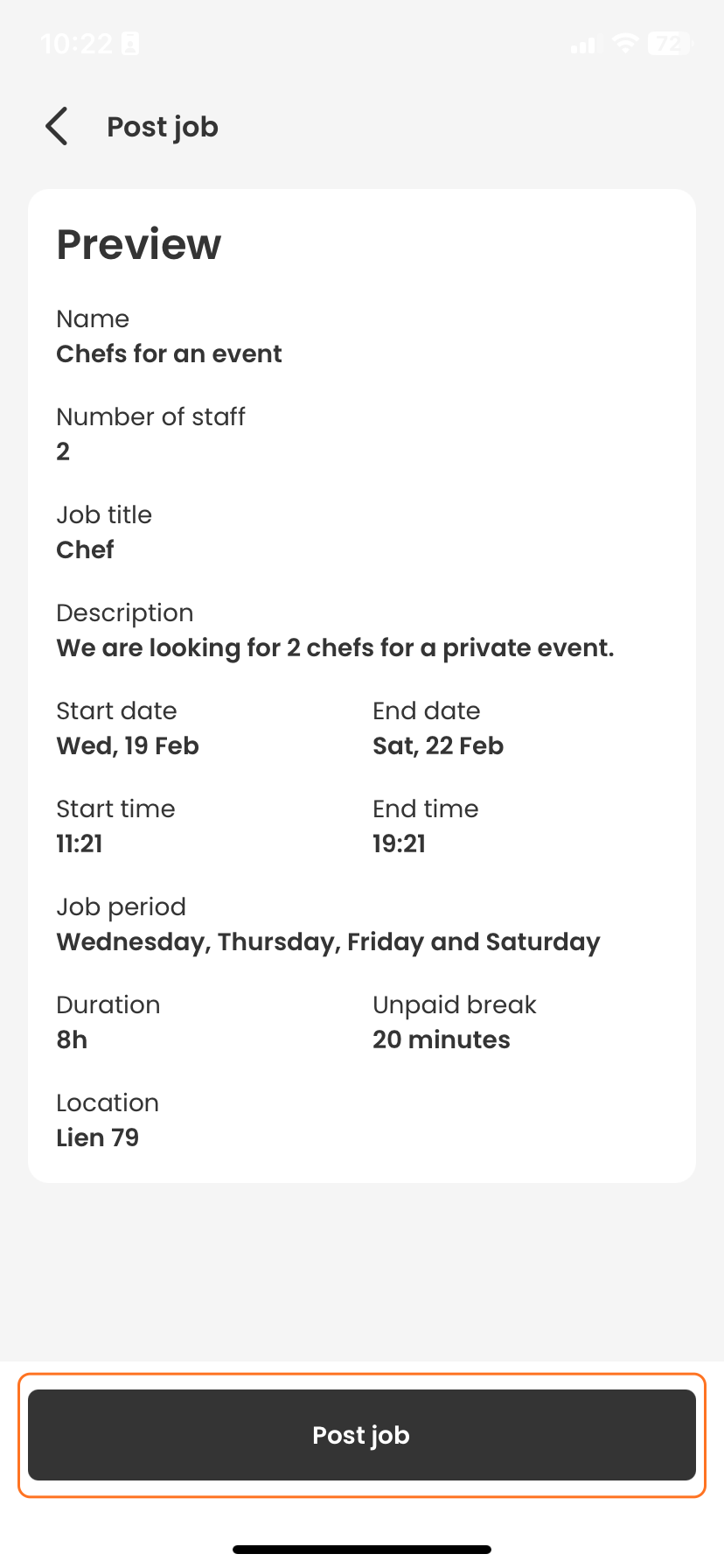
Before posting, review all details thoroughly to ensure accuracy and completeness.
Tap 'Preview' to see how your job post will appear to potential applicants.
If everything looks good, select 'Post' to publish your job listing.
Additional Tips
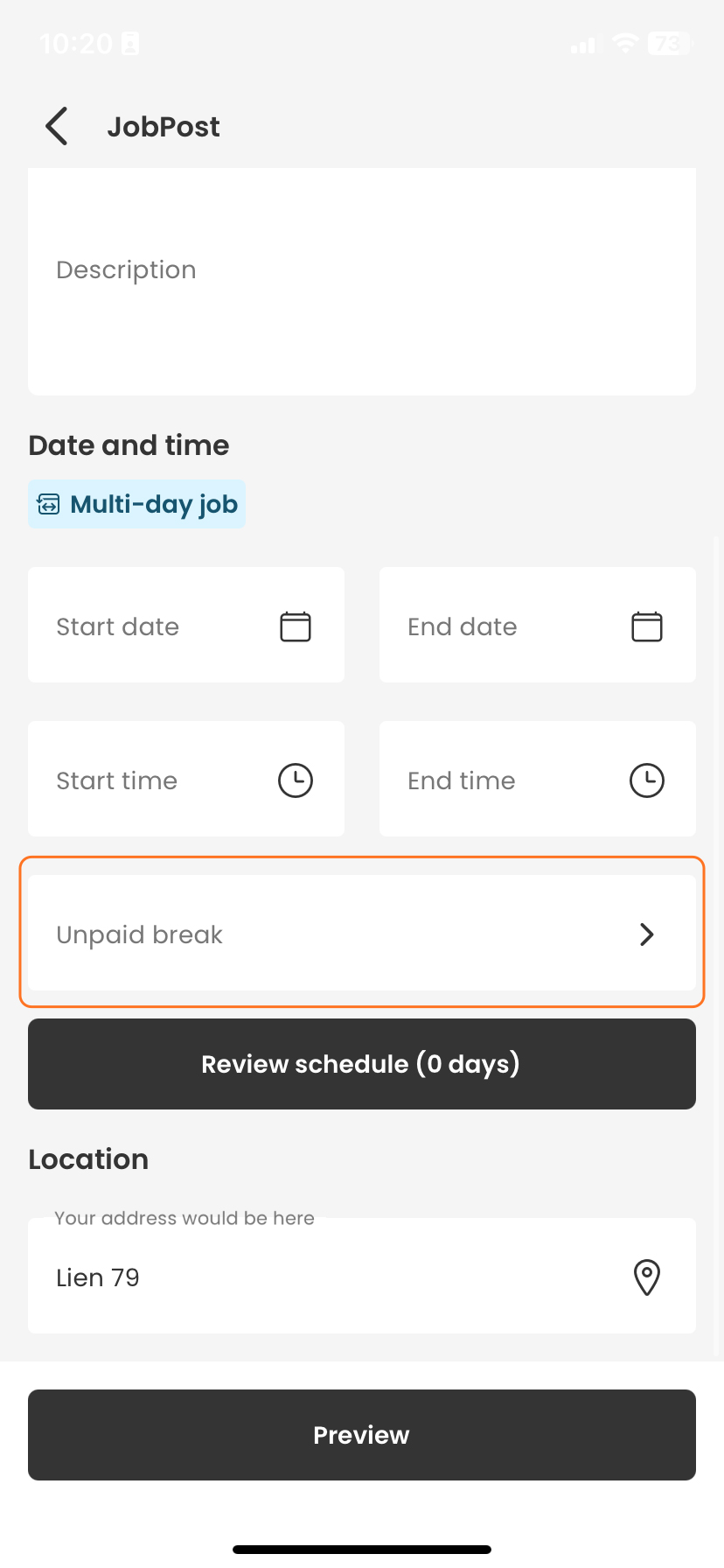
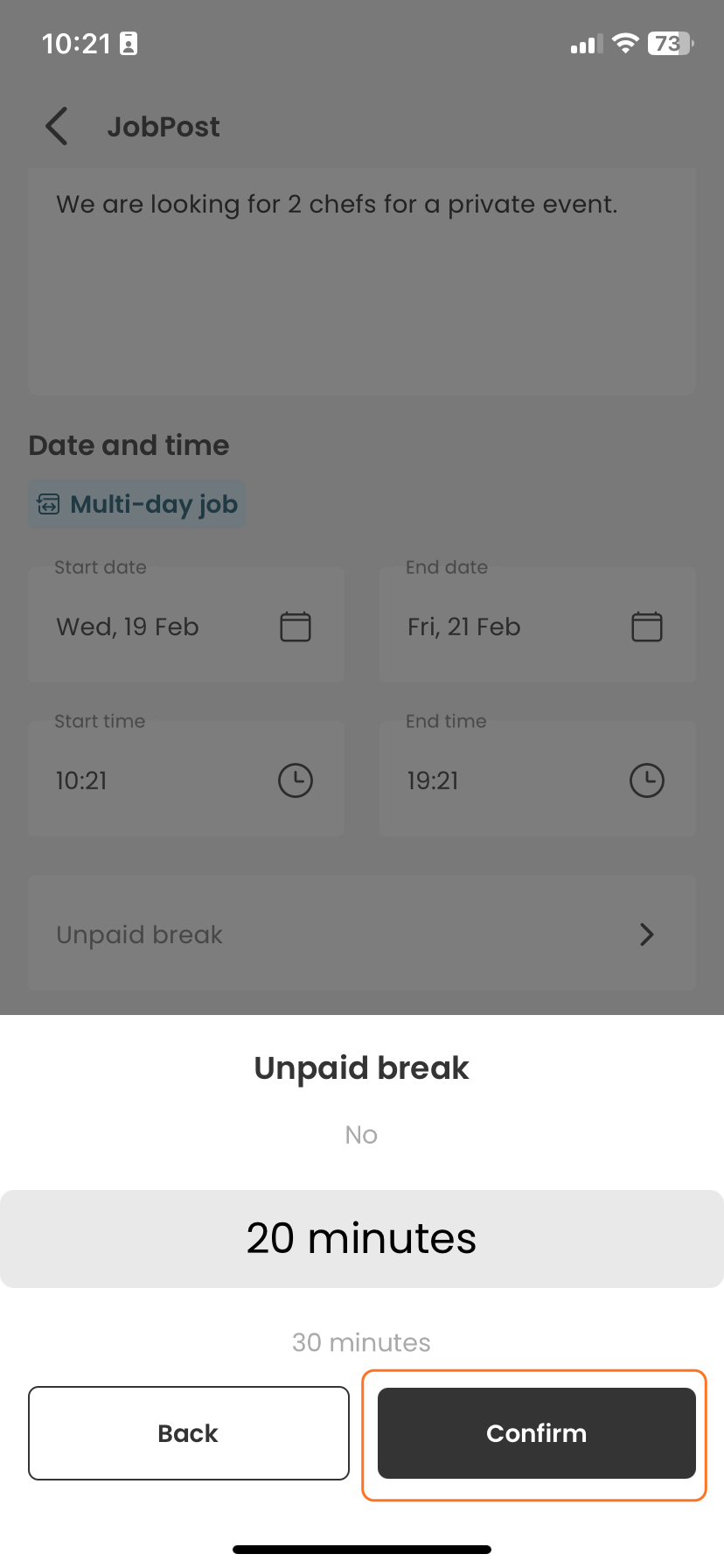
Unpaid Breaks: Decide if there are any unpaid breaks and specify the duration in the job setup.
Final Step: Confirmation
Confirmation: After posting, you will see confirmation that the job is live and you can start receiving applications from potential staff.
By following these steps, you can effectively use Time2Staff to meet your staffing requirements efficiently, whether for a single day or multiple days. If you need help along the way, our support team is here to assist you.